PocketShell

A real Linux workspace on Android.

A proper terminal, files that bridge Android and Linux, Git, desktop apps, and alerts when your coding agents finish. One app, no setup marathon.

  • 15-day free trial
  • One payment, no subscription
  • Android 8+ · arm64

Version 1.0.10 · about 31 MB · signed APK · checksum 749e44ecbdef02a1923af4577c0c8461cd73249da6312df489321c7cd3ab5cfe

Debian 13A real Linux with apt, installed for you on first launch.
1 tapto install and launch an agent from the Home screen.
Up to 36×faster file-heavy work on the Fast engine, measured.
5 deviceson one license, with updates inside the app.

Run the agents you already use, right on the phone

  • Claude Code
  • Codex
  • OpenCode
  • Hermes Agent
  • Kilo Code
  • Cline

What's inside

Not a toy shell. The whole workspace.

PocketShell installs a real Debian Linux on your phone, then builds a native Android experience around it. It is not Termux, and it is not an IDE. It is the workspace in between.

01 · Home

Everything starts on Home.

One screen for your tools, your folders and your plugins.

  • Top bar. Terminal opens Linux (long-press for the Android shell). Desktop starts the Linux desktop and glows green while it runs. Info shows diagnostics, and the gear opens Settings.
  • Plugin cards, two sizes. Swipe sideways through the plugins on Home (Todo and Notes are built in). Maximize turns a card into a full page, and minimize puts it back.
  • Folders. Bookmark the folders you use every day, with your recent ones beside them. Long-press for Open in Terminal. "See all" opens the full folder explorer.
  • One-click install. Your tools lists the coding agents. Tap one to install it, tap again to launch it.
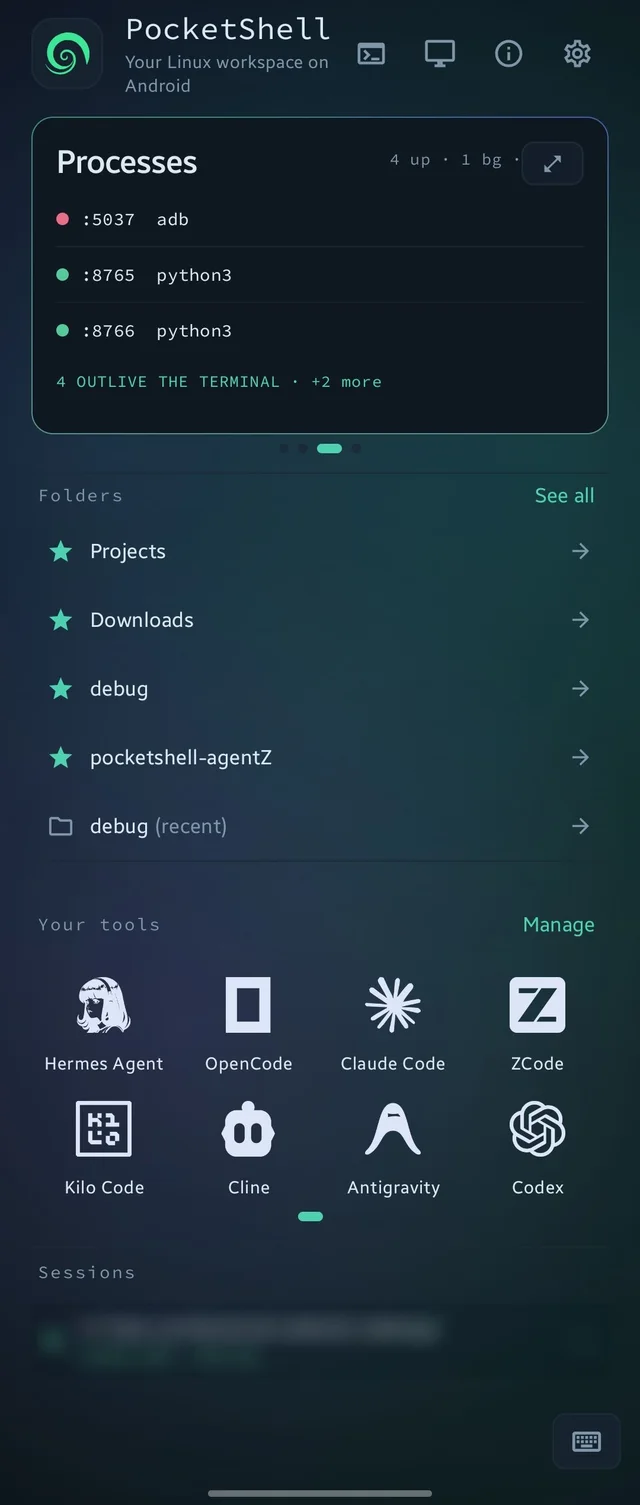
PocketShell Home with a Todo plugin card, bookmarked folders and the agent tools
02 · Terminal

A real Debian terminal.

Not a toy shell with a few built-in commands: a full Debian 13 you can install almost anything into.

  • Everything in apt. Install git, compilers, build tools, databases, editors and the rest of the Debian archive.
  • Languages and runtimes. Python, Node.js, Java 21, Git and a C compiler run as they do on any Debian arm64 machine.
  • Servers and jobs. Run a dev server, a web app or a long build in one tab and keep working in another. Tabs keep running in the background.
  • You pick the engine. The prompt shows which one a tab uses, [fast] or [compat], as in the screenshot.
A Debian terminal tab in PocketShell with the prompt root@pocketshell[fast]
03 · Agents

Run your coding agents on the phone.

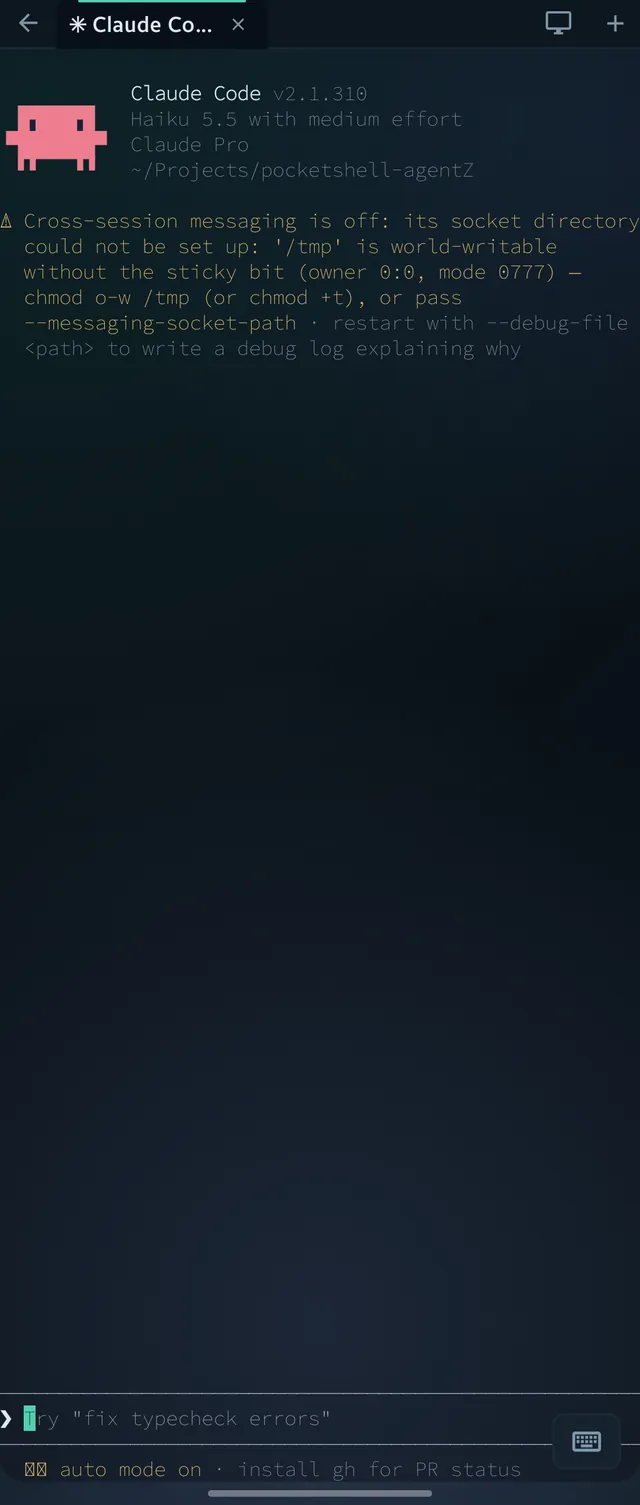
Start a Linux session, run Claude Code or any other CLI agent, and keep working while the phone is in your pocket.

  • Paste photos and files. Copy an image or file in Android, long-press the terminal and tap Paste. PocketShell copies it into Linux and pastes the path, so agents can open it.
  • Clipboard history. Text and pictures you copy are kept for you, with pins and one-block paste.
  • Sessions that survive. Your terminals keep running in the background while you do something else.
  • The desktop too. With the Linux desktop running, an agent can open and use graphical apps from the terminal as well.
Claude Code running inside PocketShell
04 · Files

Two worlds, one file manager.

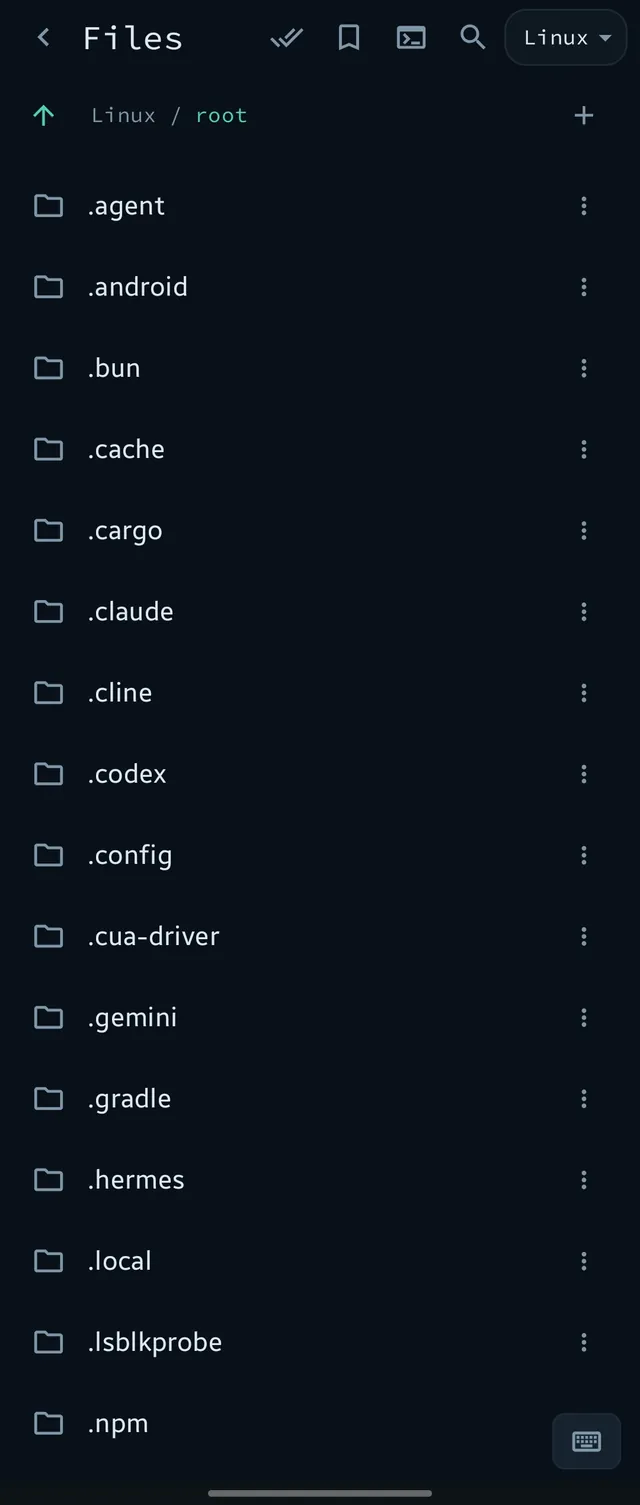
Browse your Linux files and your Android storage side by side, and move things between them without leaving the app.

  • Import and export. Pull files in from Android's picker; export back out with a verified copy.
  • Open anywhere. Open a file in an Android app, set a default app, share it, or install an APK straight from Files.
  • Open Terminal Here. Start a Linux terminal in any folder.
  • Zip, extract, bookmark. Archives are handled safely, and pinned and recent folders show up right on Home.
PocketShell file manager showing Linux files
05 · Desktop

Real desktop apps, on a phone.

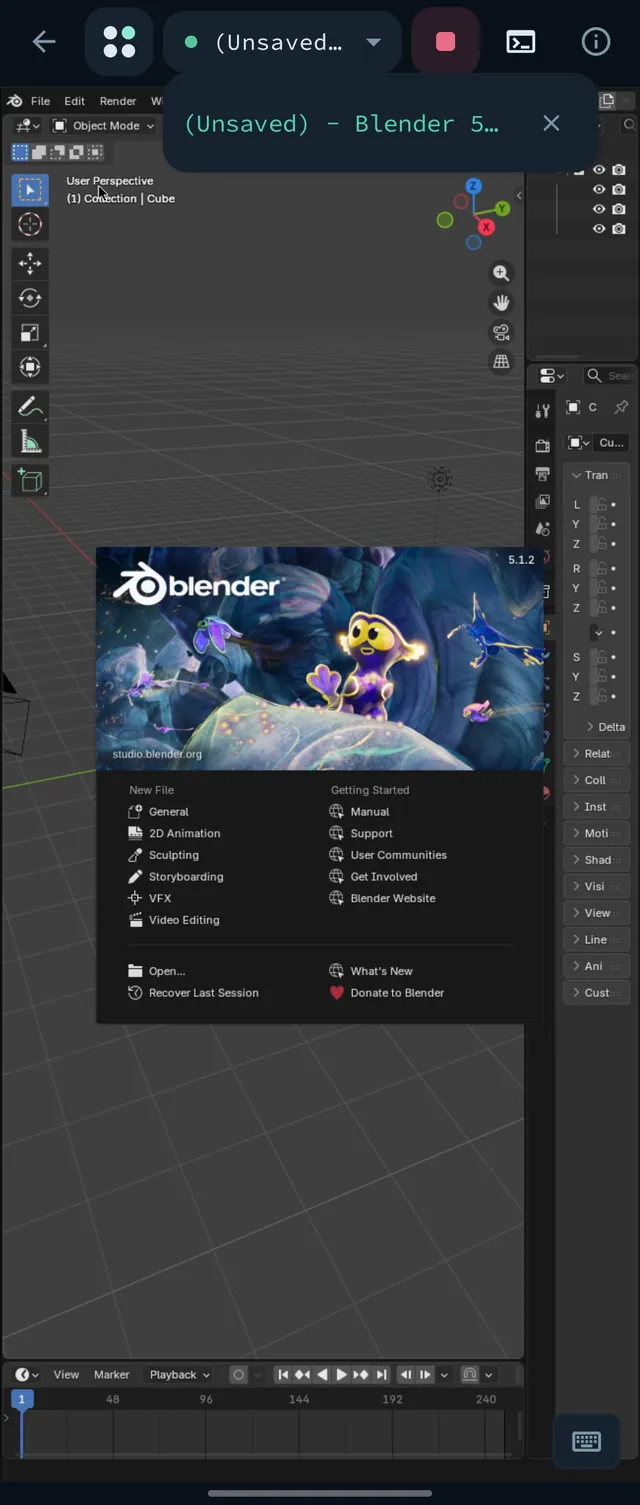
Start a Linux desktop and run graphical apps from the same Linux your terminal uses. The screenshot is Blender 5, running on the phone.

  • Install from a library. The GUI Apps plugin lists desktop apps from Debian and prebuilt AppImages, including browsers, editors and graphics tools.
  • Made for touch. Trackpad or touch pointer, two-finger scroll and right click, a built-in keyboard and physical-keyboard support.
  • Your resolution. Choose Auto, SD, HD, FHD, 2K or 4K. The phone's GPU is used where the device supports it.
Blender running on the PocketShell Linux desktop
06 · Keyboard

A keyboard built for the terminal.

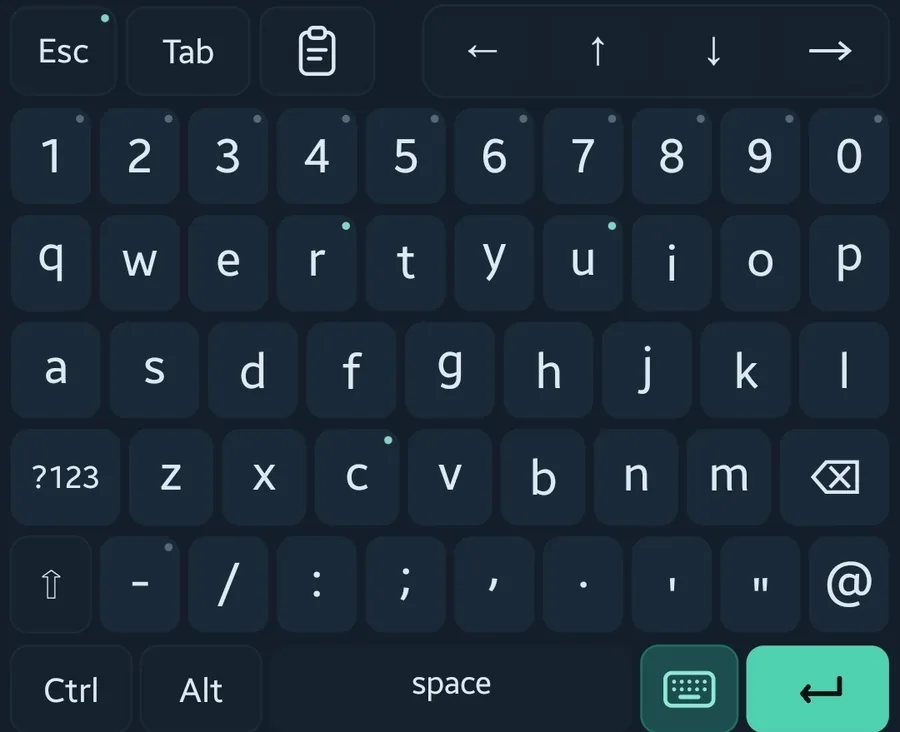
Esc, Tab, arrows, Ctrl and Alt are always one tap away. And every key can be yours.

  • Long-press keys. Choose what holding a key does: type text (optionally press Enter) or send a combo like Ctrl+C.
  • Symbols page. Rename the page key and add up to 10 custom buttons such as ~/, && or 2>&1.
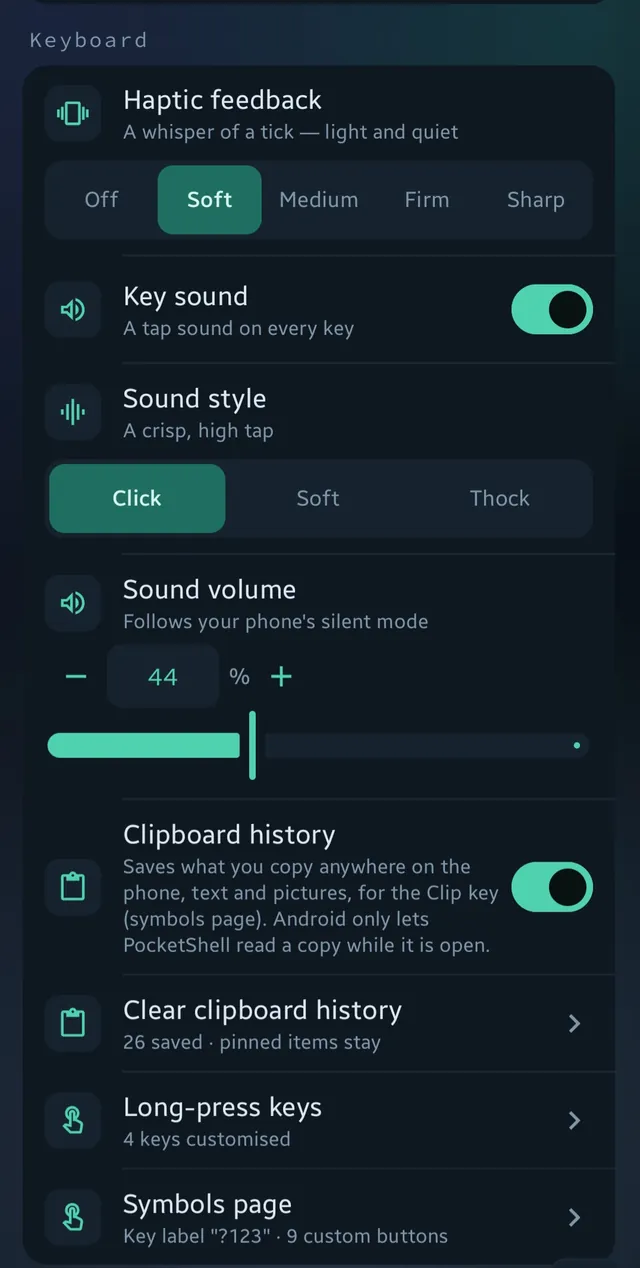
  • Feel every key. Haptics in five strengths, three key sound styles with their own volume, and clipboard history with pins.
  • Reset any time. Put one key, or all of them, back to default with one tap. Works with a physical keyboard too.
The PocketShell terminal keyboard
Keyboard settings: haptics, key sound and clipboard history
07 · Themes

Your terminal, your colors.

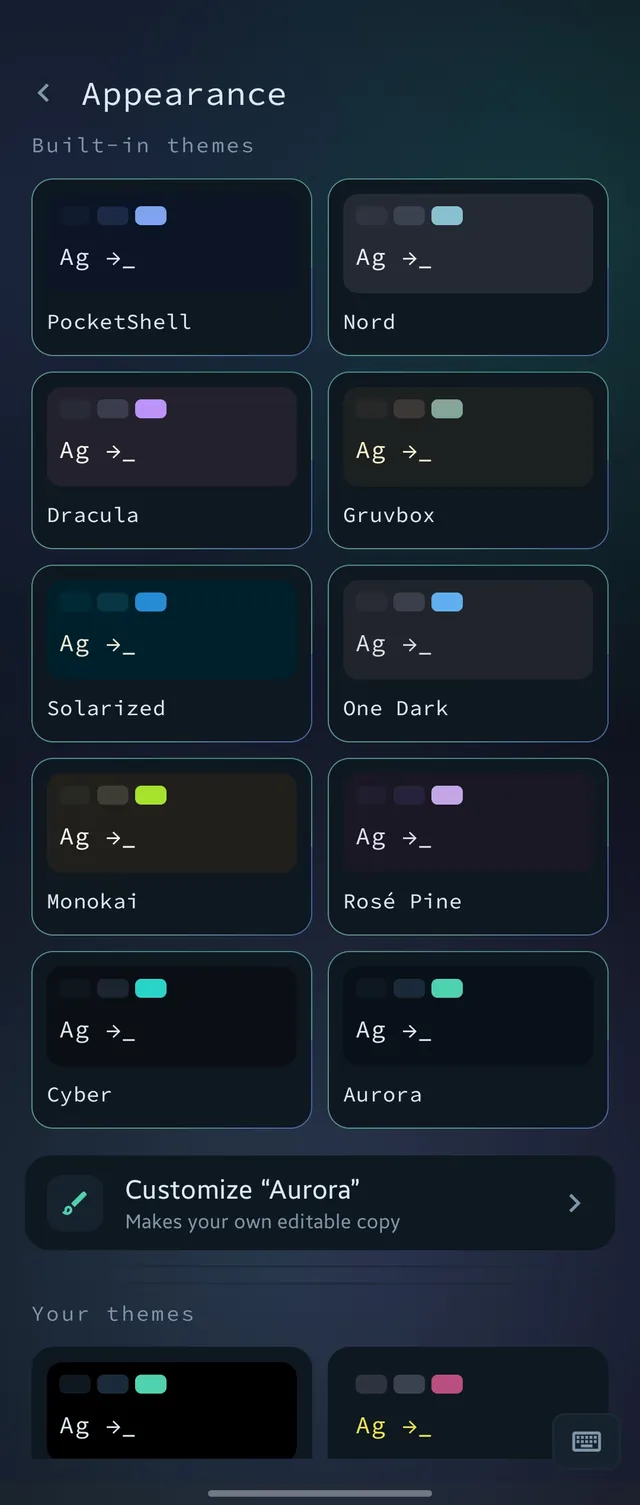
Ten built-in themes, and a theme editor to make your own.

  • PocketShell
  • Nord
  • Dracula
  • Gruvbox
  • Solarized
  • One Dark
  • Monokai
  • Rosé Pine
  • Cyber
  • Aurora
  • Tap Customize on any theme to make your own editable copy. The original is never touched.
  • Change colors, terminal colors, launcher icon tint and animated aurora colors.
PocketShell Appearance settings with built-in themes
08 · Alerts

Your agent finishes. Your phone tells you.

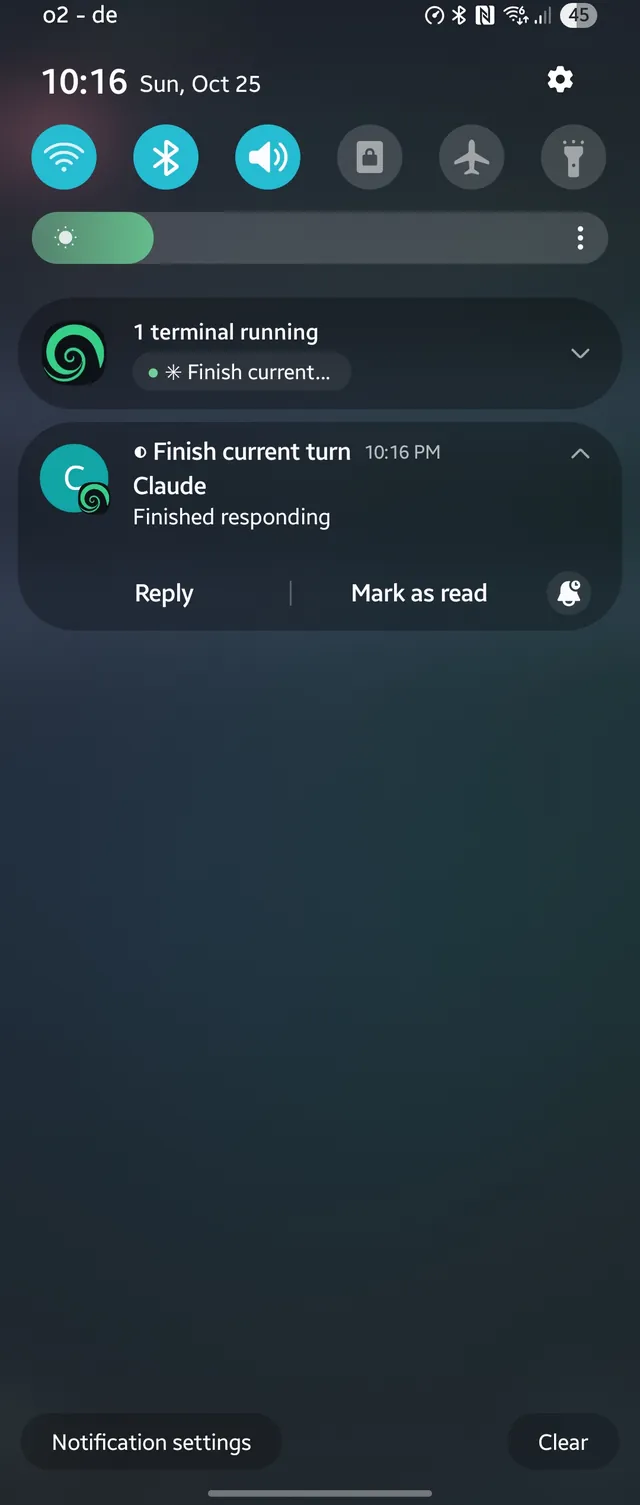
Kick off a long task, lock your phone and get on with your day. When the agent is done, an Android notification arrives, with Reply and Mark as read right there.

  • Standard signal. Agents send an OSC 9 message and PocketShell turns it into a notification, so any agent that sends it works.
  • Tested with Claude Code, Codex, OpenCode, Hermes and ZCode.
An Android notification from an agent that finished

Two engines

Fast by default. Compatible when something needs it.

Every Linux program asks Android for files and processes through system calls. The engine decides how those calls are handled, so it decides how fast your terminal is and what runs. Auto starts on Fast once it passes a self-test on your phone.

Fast

Built for speed

Runs your programs in-process with no tracer watching every call, so file work costs a fraction of what it does on Compatible.

36×find over 10,000 files
30×grep -r across a tree
8.4×git status
  • Fast at: builds, git, find, grep, Node.js file scans and starting many processes.
  • Not faster at: programs that spend their time computing instead of touching files. Node.js starts in the same time on both engines.
  • Works differently: hard links are copies, strace and gdb do not run, and a program started with nohup keeps running after you close the tab.

Codex and Hermes Agent do not run on Fast yet. Switch to Compatible for them, and for anything else that fails on Fast.

Compatible

Runs everything

The original engine. It runs your programs under proot, which watches each one with ptrace and translates every file and process call for Android, one call at a time. Because it handles each call itself, it covers programs that Fast cannot run yet.

  • Always available. It needs no self-test and works on every supported phone.
  • Where it is used. Package operations such as apt, and plugins, always run on it. The Linux desktop and your terminal tabs follow the engine you choose.
  • The price. Every file access takes a detour, so file-heavy work is slower: find over 10,000 files takes 19 seconds instead of half a second.
  • Use it for: Codex, Hermes Agent, and anything that misbehaves on Fast.

Measured: Compatible vs Fast

TaskCompatibleFastFaster by
find, 10,000 files19.1 s0.52 s36×
grep -r43.7 s1.45 s30×
Node.js recursive file stat2.65 s0.18 s14.6×
git status0.95 s0.11 s8.4×
Start 100 processes0.59 s0.23 s2.6×
Python startup175 ms91 ms1.9×
Shell startup85 ms53 ms1.6×
Node.js startup191 ms184 msno difference

Our own benchmark on a Galaxy Tab S7 (Android 13), best of three runs. Your numbers will differ with the phone and the files.

Switching takes one tap

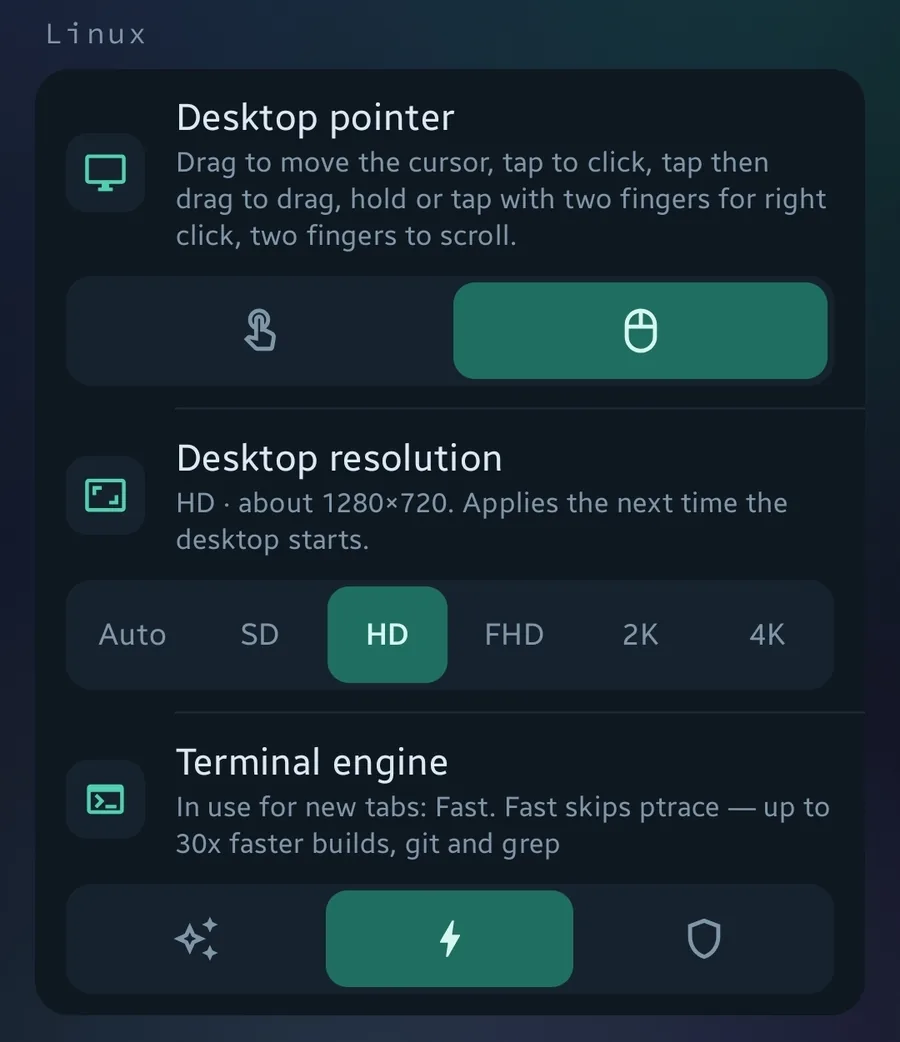
  1. Open Settings → Linux → Terminal engine and choose Compatible (or Fast, or Auto).
  2. Open a new terminal tab. New tabs use the engine you chose; tabs that are already open keep theirs.
  3. Check the prompt. It reads pocketshell[fast] or pocketshell[compat], so you always know which one a tab is on.

Not sure? Leave it on Auto. If Fast cannot run on your phone, Auto uses Compatible by itself.

Linux settings: desktop pointer, resolution and terminal engine
Settings → Linux: desktop pointer, resolution and terminal engine.
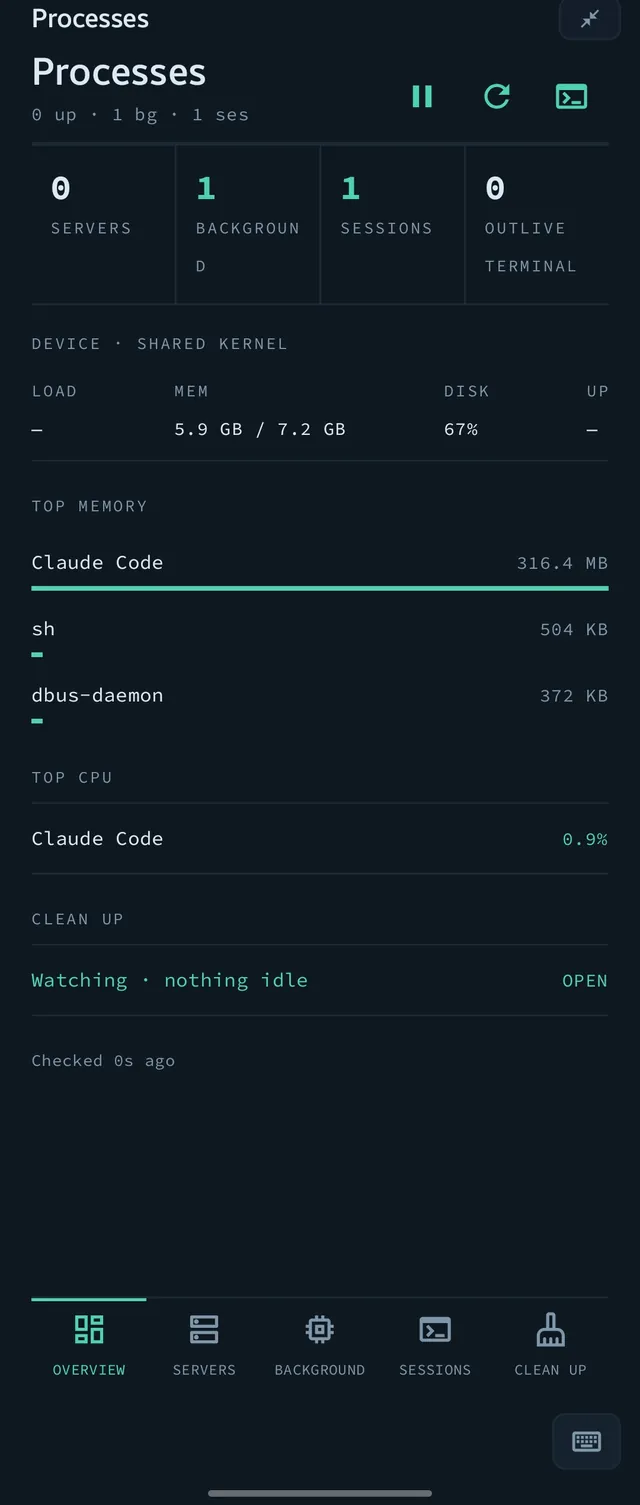
Processes plugin
Overview

Processes

Dev servers, background jobs like Gradle, sessions, and top memory and CPU.

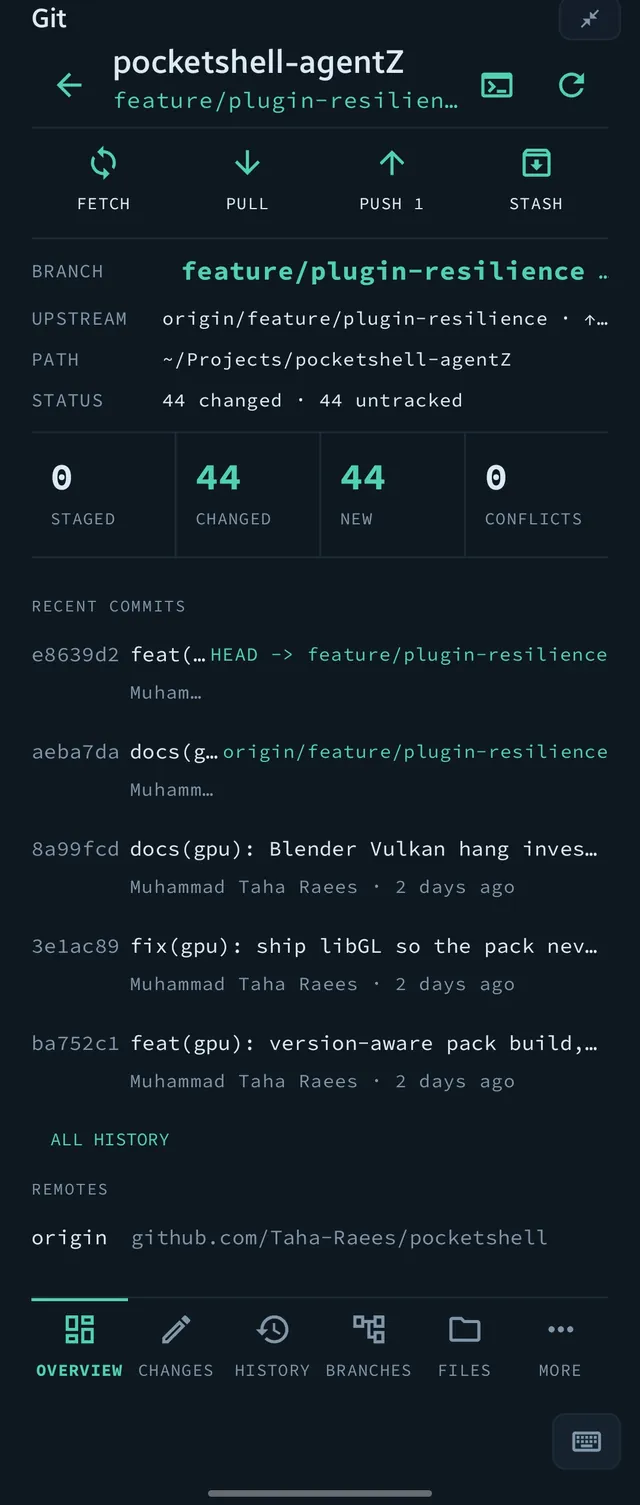
Git plugin
Dev

Git

Changes, history, branches, files and remotes, with push, pull, fetch and stash.

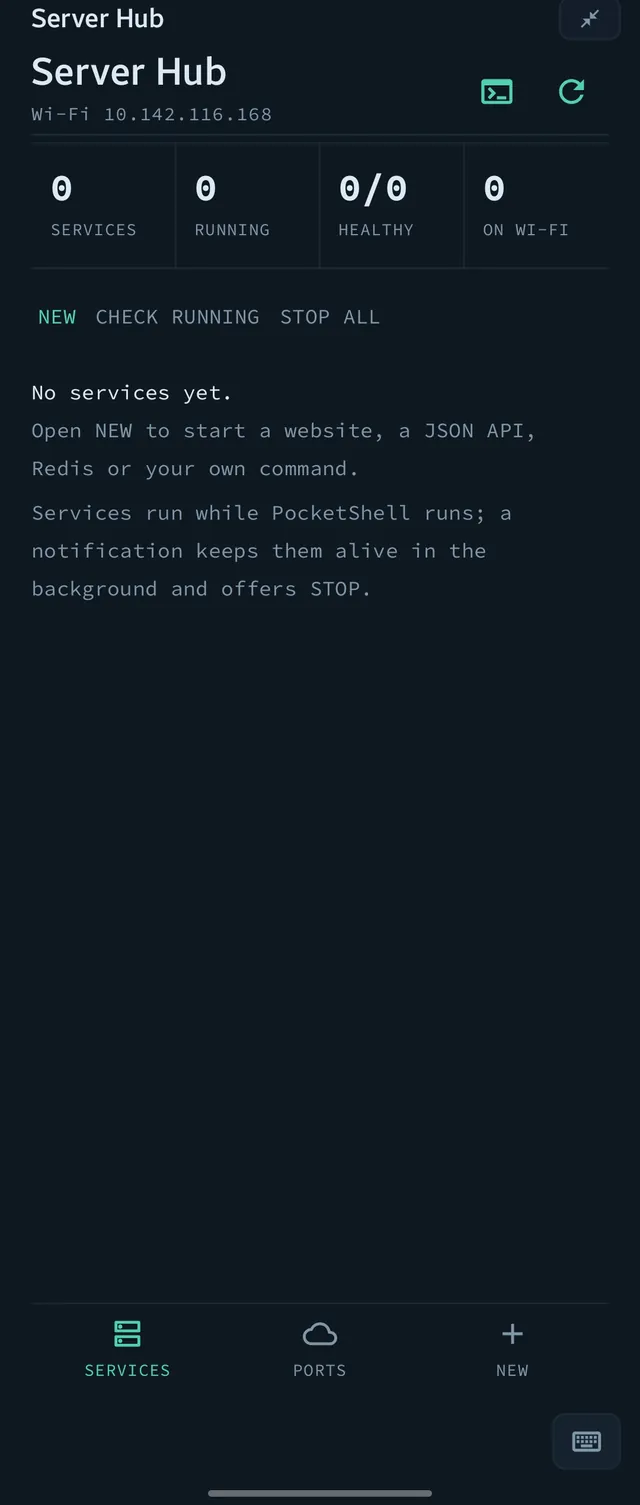
Server Hub plugin
Servers

Server Hub

Start and manage web servers, local APIs and self-hosted services.

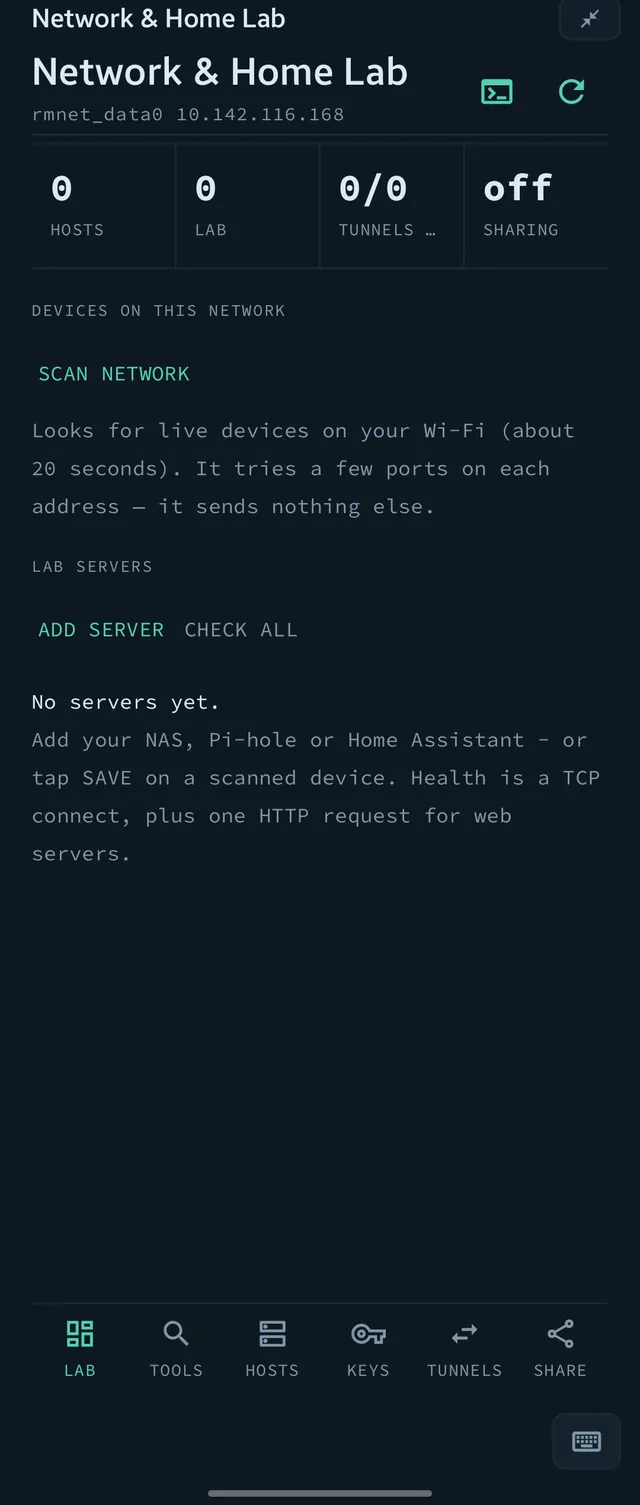
Network and Home Lab plugin
Network

Network & Home Lab

Find devices on your Wi-Fi, DNS, ping, traceroute, SSH hosts, keys and tunnels.

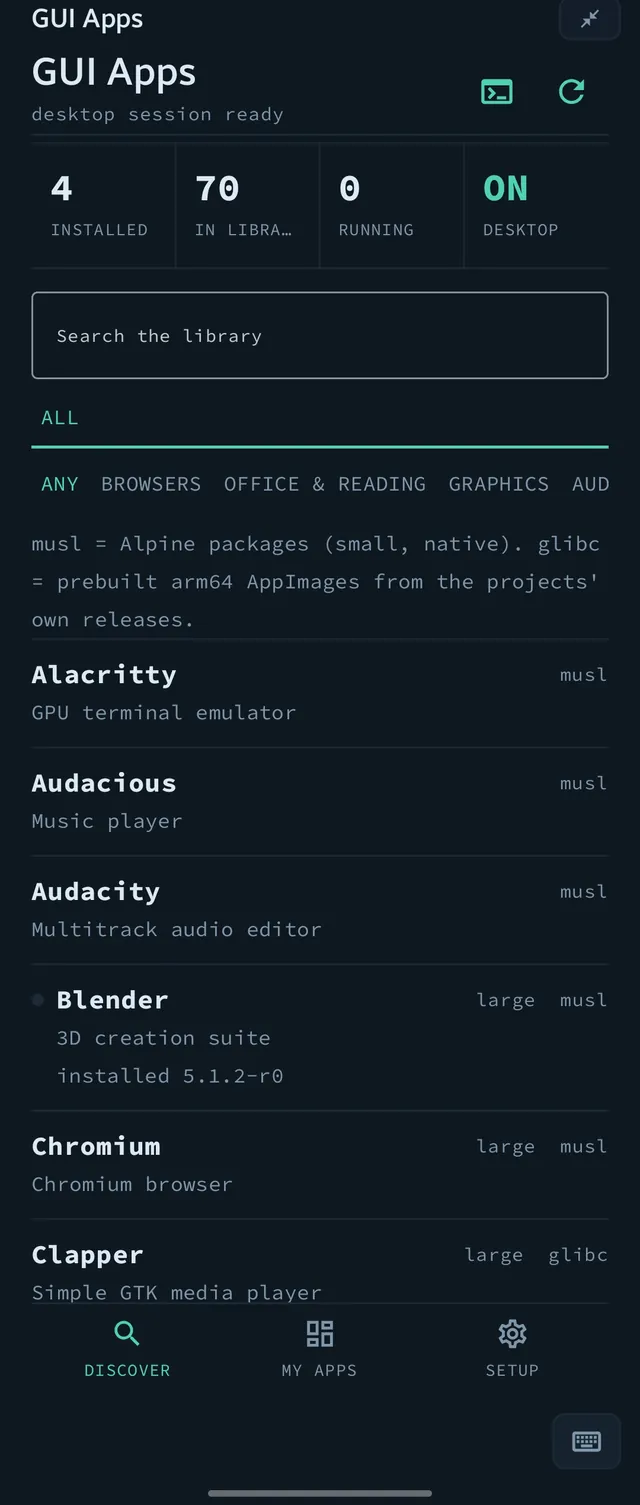
GUI Apps plugin
Desktop

GUI Apps

Discover, install and launch desktop apps for your Linux desktop.

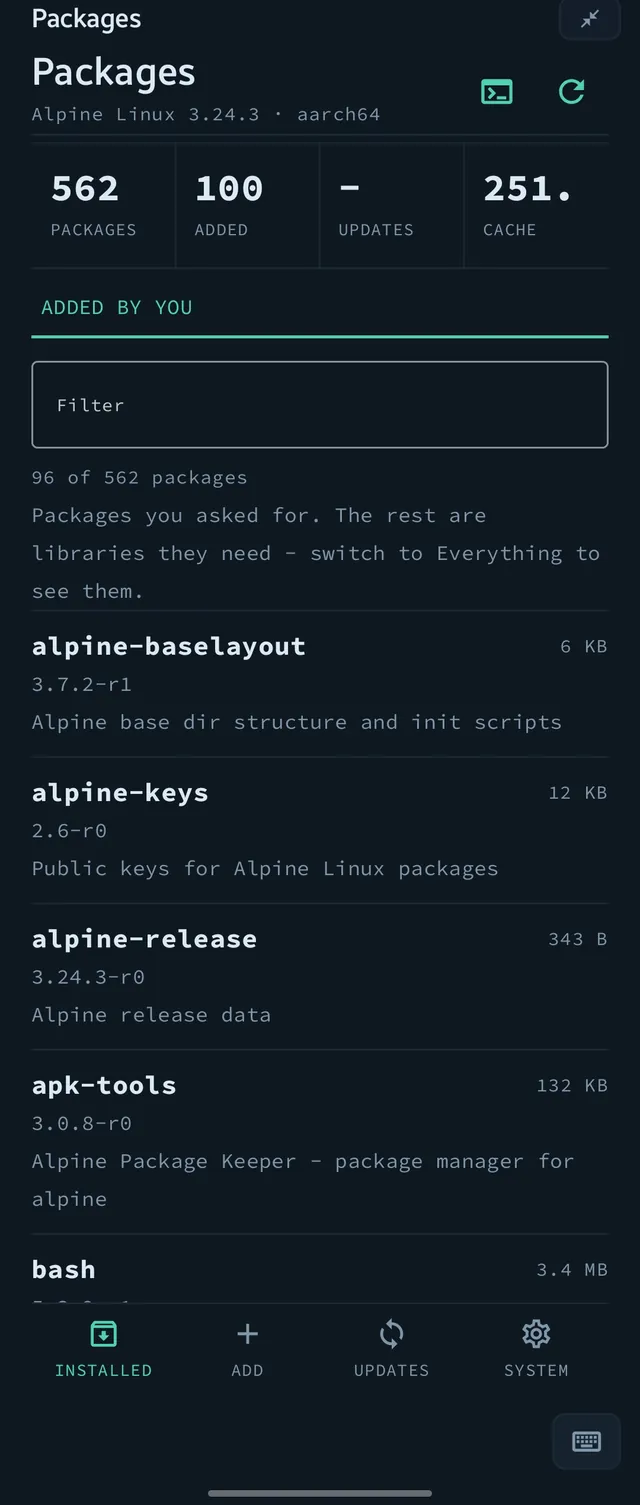
Packages plugin
System

Packages

Add, update and remove Linux packages and CLI tool bundles.

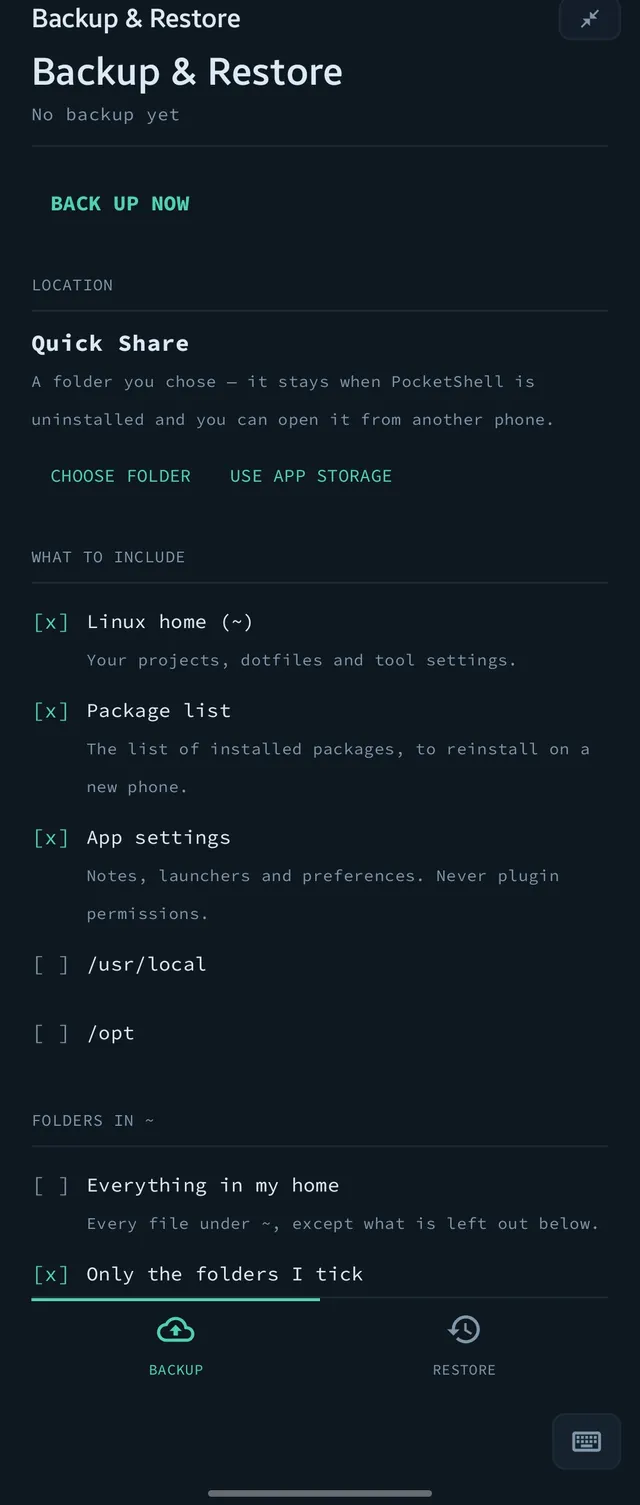
Backup and Restore plugin
Safety

Backup & Restore

Your Linux home, packages and settings in one portable, optionally encrypted file.

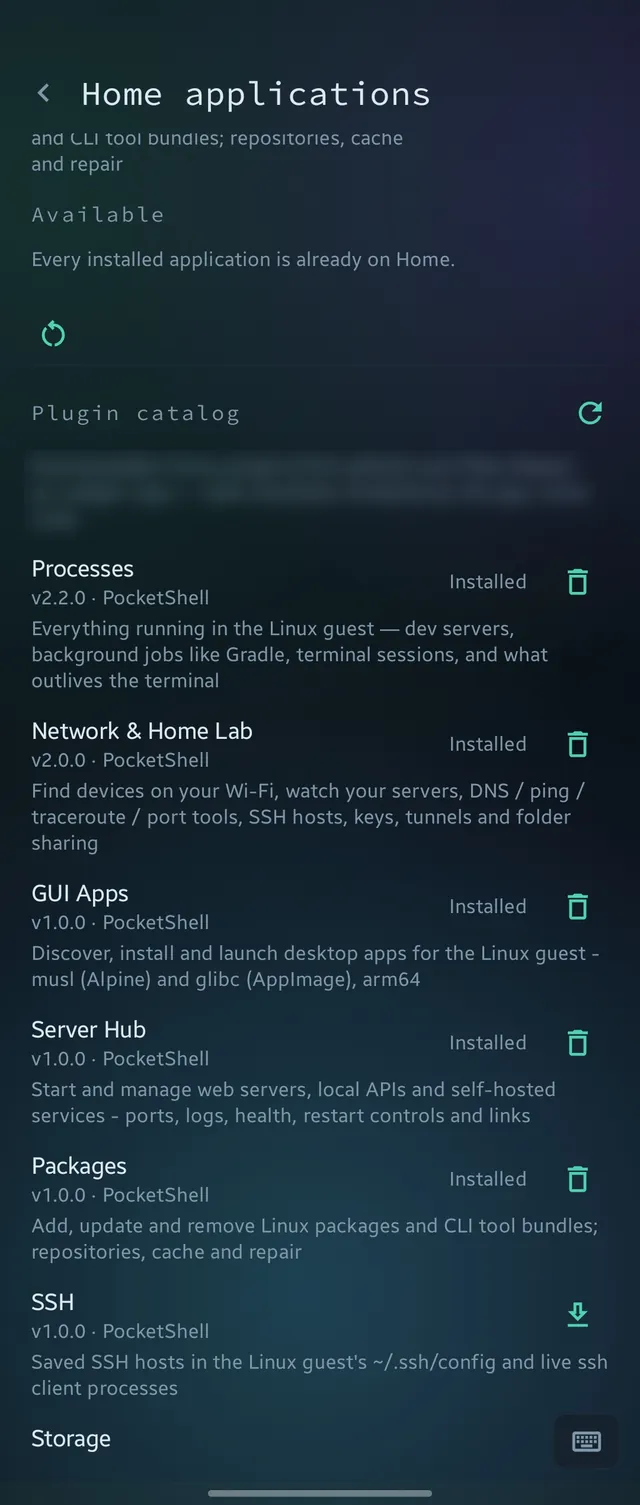
The plugin catalog in Settings
Catalog

Install and update

Install from the catalog, update with one tap, and remove any plugin whenever you like.

Also available: SSH hosts and Storage insights.

PocketShell

Linux, in your pocket

PocketShell

A real Linux workspace with an Android-native Home, Files, keyboard and desktop. One focused app, designed and built by its developer.

Designed & built by Muhammad Taha Raees Founder and developer of PocketShell

Getting started

From download to a Linux prompt in minutes.

  1. Download the APK and allow installs from your browser or file manager when Android asks.
  2. Open PocketShell and sign in with Google. Your 15-day free trial starts, no payment details needed.
  3. Linux installs itself in the background while you sign in. When it is ready, Home is waiting.
  4. Tap an agent, open Files, or start a terminal. Updates arrive inside the app, with a list of what changed.

Requirements

  • Android 8.0 or newer
  • A 64-bit ARM phone or tablet (arm64)
  • A Google account on the device, for sign-in
  • Internet for the first Linux setup and for your license check
  • A few hundred MB free to start; more for packages and apps

Pricing

Try it for 15 days. Keep it with one payment.

No subscription, no ads, no upsell maze. Your license covers your devices, and everything stays on your phone.

Free trial

15 days · full app
  • Everything unlocked
  • Sign in with Google, no card needed
  • Your files stay yours if you decide not to continue
Start the trial

You buy inside the app when your trial ends. See the refund policy.

Questions

Straight answers.

Is this Termux?
No. PocketShell is its own app: a real Debian Linux system with an Android-native Home, Files, keyboard, notifications and a desktop built around it. It uses the open terminal engine that the Termux project publishes, and we credit them for it.
Is it an IDE?
No. It does not try to replace your editor. It gives your tools, agents and files a proper home on Android.
What happens when the trial ends?
You will be asked to buy before continuing. Your files and your Linux home are never deleted, and you can still reach them and make a backup.
Does it work offline?
Yes. Linux, your files and your tools run on the phone. Your license is checked on the device and refreshed with a short online check from time to time. The first Linux setup and package downloads need internet.
How many devices can I use?
Your license is per person and covers up to five active devices.
Why is it not on Google Play?
PocketShell runs a full Linux environment and installs its own tools, which does not fit store review rules well. You get a signed APK directly, and updates arrive inside the app.
How do updates work?
The app checks for new versions, shows you what changed, and installs the update after you confirm. Every update is signed, and the app verifies the signature and checksum before installing.
What do you collect?
Only what an account and license need: your Google account identifier and email, your devices, and purchase records. Usage statistics are off unless you turn them on. Read the privacy policy.
Which phones work?
Android 8.0 or newer on 64-bit ARM (arm64). Most phones and tablets from the last several years qualify.

Put Linux in your pocket.

Download PocketShell, sign in and have a real Linux workspace on your phone in minutes.

Download for Android

Version 1.0.10 · All releases and checksums